Oberin Overlays
Four see-through helpers that sit over the Oberin client and read what is already on your screen.
What's in the pack
Turn each one on or off from the settings window. They run independently, so you can keep just the ones you use.
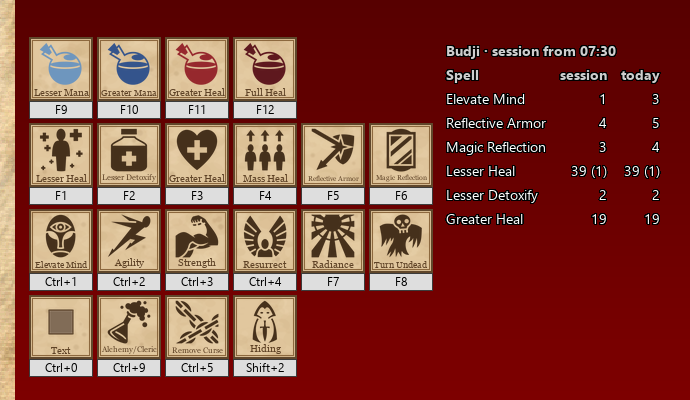
Hotkey bar
Your bound keys shown as a row of tiles (spells, potions, skills), so you don't have to remember which F-key is Remove Curse. It's built from the game's own /display hotkeys output.
Below it there's a small tracker panel with how many times you've used each spell or skill this session and today, with fizzles and crits next to them. It counts everything that leaves a line in the game's log: casts, arrows, stealths, backstabs, warrior abilities. A few skills don't write a line, and those can't be counted.
First setup: about a minute
- In the game, type
/display hotkeys. That's where the tiles come from, and nothing shows up until you've done it. - The bar appears. Tick Unlock to move on the Pack page, drag the bar where you want it, then untick it.
- If you change a key, type
/display hotkeysagain. Each character has its own bar; pick the character on the Pack page.
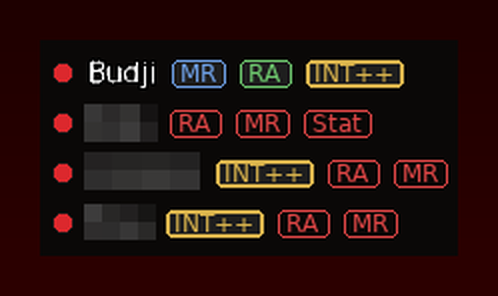
Party buffs
Your party window, redrawn. It shows who's online, which buffs each member has, and in red which buffs they're missing, so you can see who needs a rebuff without keeping track in your head.
First setup: a few things to know
- Add yourself to your own party. In the game, type
/addfollowed by your own character's name. The game doesn't list you in the party window by itself, and the overlay only knows what that window shows. - The overlay reads the game's Party window, so if that's closed or covered there's nothing to read. Keep it away from the very top and bottom of the game window. If the panel says party frame not visible, drag the Party window toward the middle.
- The panel appears beside it. You can drag it anywhere, any time.
- Right-click the panel for Manage members if you want to hide someone.
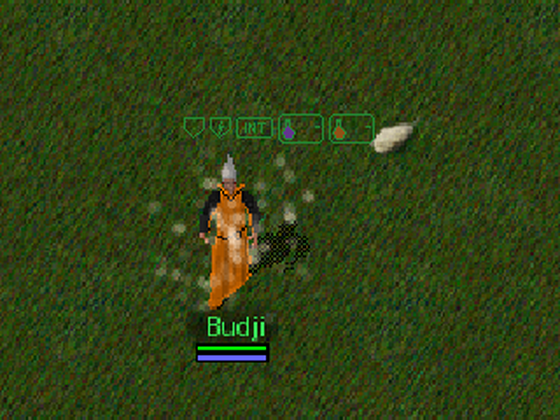
Your own buffs
A small readout above your character with your active buffs and two counters: how many mana potions you've stacked, and how many healing potions. That tells you when the next one would be wasted and when the penalty has worn off.
This is the least finished of the four. It reads the game's own text off the screen, and other screen resolutions and font settings are where it still gets things wrong. I'm working on it. If it shows ? for you after setup, please send a report.
First setup: two minutes, once per character
You have to show this one where to look. Until you do, it shows a ?.
- In the game's Fonts menu, set UI Font to DejaVu Sans and UI Font Size to Base. That's the only supported setting. The buff tags are recognised from pictures of the game's own text, and those pictures were taken on a client with exactly this font and size. Any other font or size draws the letters differently, and then the tool misses tags, sometimes without telling you. The chat font and the other font settings don't matter.
- In the game, open your inventory (with the potions visible) and your Party window. You need to have added yourself to the party (
/addand your own name), otherwise your name isn't there to point at. - In the settings window, on the Your own buffs page, click Set up the boxes…. Three see-through boxes appear.
- Drag the blue box onto your mana potion row, the orange box onto your healing potion row, and the yellow box onto your own name in the party window. One row each, not the whole list.
- Leave a small gap between the game's own windows. The inventory list can't be read when another game window is touching its side.
- Drag the readout itself to just above your character, then click Done. That's when it saves your rows.
If you change your UI scale or font, or make a new character, run Set up the boxes… again.
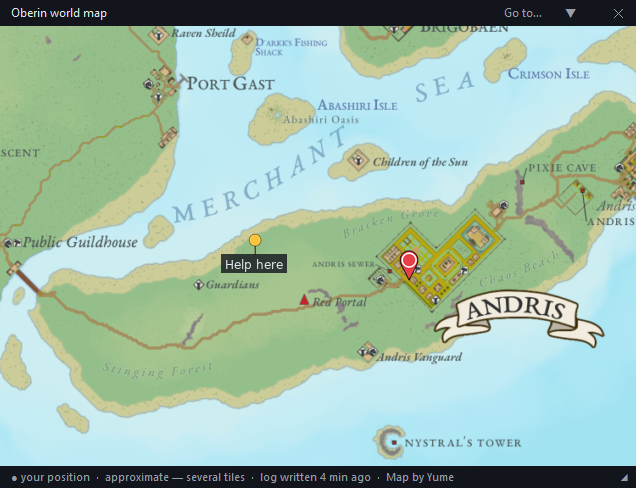
World map
The community map, with pan, zoom and saved pins. Take a sextant reading in the game and a pin appears where you are. It's accurate to a few tiles and lags by a minute or so, because the game writes its log slowly.
Map by Yume.
First setup: nothing to set
- Use a sextant in the game. Within a minute or so, a pin appears on the map where you are.
- Drag the map's title strip to move it, the corner grip to resize, the map itself to pan.
- Double-click an empty spot to save your own pin (or right-click → Add a pin here…).
How to install
About two minutes. You don't need Python or anything else on your PC.
-
Download and run the installer
Use the button at the top. It installs to your Programs folder unless you pick somewhere else, and puts Oberin Overlays in the Start menu.
-
When Windows says "Windows protected your PC", click More info, then Run anyway
This only happens the first time. The installer isn't signed, because signing costs a yearly fee and this is a free tool for a small game. Oberin's own download shows you the same screen. Right after it, a yellow box asks whether to allow an app from an unknown publisher to make changes. That's the same thing again, click Yes.
-
In the game, type
/display hotkeysonce. Don't skip thisNothing works until you do. That command makes the game write a small file with your keys, and that file is the only way the overlays learn your character exists. Until then the settings window lists no characters and the hotkey bar shows a note asking for it.
Do it once per character, and again whenever you change a key. Then, in the settings window, pick your character, and if it didn't find it by itself, the folder where Oberin keeps its logs.
-
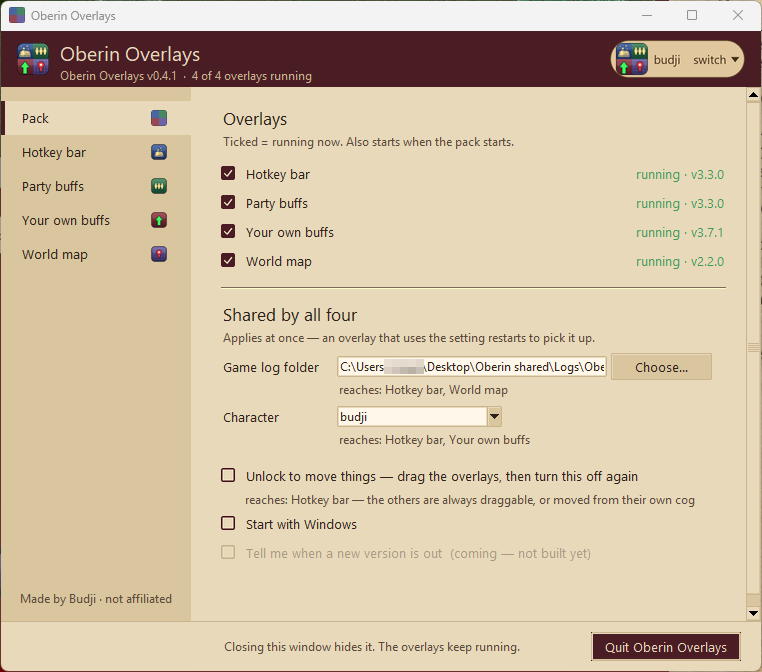
Tick the overlays you want
Each one has its own tab in the settings window. Untick it and it closes; tick it and it comes back where you left it.
-
To move one, turn on "Unlock" and drag it
Turn Unlock off again and clicks go straight through to the game.
Updating: download the new version and run the installer again. Your settings and layouts stay.
What it does, and what it never does
It does
- read the screen where the game draws its windows
- read the log files the game already writes to your disk
- draw over the game, click-through, only while the game or its own settings window is in front
It never does
- press a key or click in the game for you
- read the game's memory or touch its files
- send anything about you anywhere. There's no account, no login and no telemetry. About once a week it asks this page for the latest version number and nothing more; you can turn that off in the settings window.
The source isn't published yet. If you'd like to look at it before you run it, ask me (see the bottom of this page).
What it costs to run
Each overlay is a small program of its own. The numbers below were measured on my PC; if a cell is blank, it hasn't been measured yet.
| Overlay | Processor | Memory | How often it looks |
|---|---|---|---|
| Hotkey bar + tracker | about 0.1 % | 46 MB | reads the log file every few seconds; redraws only when something changed |
| Party buffs | about 3.2 % | 56 MB | captures the party window a few times a second |
| Your own buffs | about 2.1 % | 53 MB | captures two small rectangles a few times a second |
| World map | under 0.1 % | 191 MB | reads the log file every few seconds; redraws when you pan or zoom |
Measured on one PC (AMD Ryzen 7 7800X3D, 16 threads, 31 GB, Windows 11 Home 26200) with the game running at 2560×1440, sampled every 5 seconds for 10 minutes on 6 September 2026. Processor is the share of the whole machine, so on a slower CPU expect a bigger share. Installed size: 104 MB. Disk activity: none beyond reading the game's own log files.
Questions people ask
Is this allowed?
It reads what's on your screen and the log files the game writes, and it never presses a key or clicks for you. It gives you no information you couldn't get by looking. It's not made or endorsed by the Oberin team. If you're unsure, ask them. That's their call to make, not mine.
Why does Windows warn me when I install it?
Because the installer isn't signed. Signing costs a yearly fee, which doesn't make sense for a free tool for a small game. Click More info, then Run anyway. Step 2 above shows the screen.
Does it slow the game down?
See what it costs to run. If one overlay costs more than you like, untick it. The others don't depend on it.
Does it work at my UI scale?
Tested at UI scale 100 to 150 %. Outside that range it will still try, and the settings window tells you it's untested. If something reads wrong at your scale, send a report with a screenshot.
On laptops: the overlays tell Windows they can handle display scaling, and anything you placed on a bigger screen is pulled back onto a smaller one. Tested on one 2560×1440 monitor at 100 %, 125 % and 150 % Windows scaling, not yet on a real laptop. If yours looks off, same thing, send a report with a screenshot.
The party panel says "party frame not visible"
Almost always it means your Party window is too close to the top or bottom edge of the game window. The overlay finds the panel by its edges, and it can only do that in the middle stretch of the screen. Drag the Party window down a bit (a hundred pixels is usually plenty) and the panel fills in on the next look. It stays blank on purpose rather than showing you a stale list.
"Can't see the inventory list in that box" during Set up
Two things cause this, and the first two players who wrote in had one each. Either another game window is touching your Inventory window, usually the Skills or Log window butted right up against it. Leave a small gap; the newest version tells you which side. Or the yellow box isn't on your own name in the Party window but on the empty parchment below the list. If your name isn't there, type /add and your own name in the game first, since the game doesn't list you by itself.
Also, this build is tested at interface sizes 100% to 150%. Bigger than that and it may not read your inventory at all. If that's you, send me a report so I know what to fix.
The cast counts look low / the map pin is behind me
The game writes its log about every 90 seconds, so anything read from the log lags by up to that long. The counts can also be lower than what you actually did: the game sometimes drops lines, and a key pressed while paralysed writes nothing at all.
I play more than one character
Switch the character in the settings window. Layouts are remembered per character; a new character starts with the layout you're using now.
Can I move things around?
Turn on Unlock in the settings window, drag, turn it off again. Locked overlays let every click through to the game.
Does it work on a Mac?
No. Windows 10 and 11 only.
How do I know there's a new version?
About once a week, when the pack starts, the settings window asks this page for the latest version number and, if there is a newer one, shows one line with the version, what's new and a download link. There's also a Check for updates button on the Pack tab if you don't want to wait. Nothing downloads or installs by itself.
How do I update?
Download the new version and run the installer again. Settings and layouts stay.
How do I remove it?
Windows Settings → Apps → Oberin Overlays → Uninstall. That removes the program; your settings folder stays unless you delete it too. Nothing else on your PC was changed.
Something's broken? Tell me
One button makes the file I need. Without it I'm guessing, because these overlays read your screen at your settings, and that's the part I can't see from here.
-
While it's still going wrong, open the settings window and press Save a report…
It's on the Pack tab. Don't close or restart anything first; the report is most useful when it's taken while the problem is on screen.
-
It asks where to put it, and writes one file
It goes on your Desktop unless you pick somewhere else. Inside is what the four overlays printed since they started, your settings, and a picture of the game window the way they see it, which is usually what answers the question. It's only the game window: anything sitting on top of it, like Discord or a browser, isn't in the picture. Everything inside the game window is, including your chat log, your inventory and your party list.
-
Send it to Budji on the Oberin Discord
Attach the file and add a line or two about what you expected, what happened instead, and roughly when. You don't need to guess at the cause; the file usually has it.
The button only writes a file. Nothing is sent anywhere until you attach it yourself, and there's no automatic crash reporting in any of this.
What's new
- 1.0.7
- Hotkeys: two more druid pet commands have icons. "Stable" shows a horse in a stall, and "Claim" shows a claim ticket. Claim works with your pet's name after it, so a key bound to "Claim Fluffy" gets the Claim icon too.
- 1.0.6
- Hotkeys: druid pet commands now have their own icons. If you bind "Guard!", "Attack!", "Heel!", "Move!", "Stay!", "Release!" or "Speak!" to a key, the hotkey bar shows a matching picture and the command's name instead of the plain Text tile. Capital letters and the exclamation mark don't matter. Thanks to the druid who asked for this.
- 1.0.5
- The map is now Yume's newest, Oberin 48.05 (September 2026, Revision 3). Place names have been redrawn and moved around the map; the coastlines are the same. Your saved pins still point where you put them, and the "you are here" marker lands within a third of a tile of where it did before, so you shouldn't see it move.
Your own buffs: when the tool recognises some tags on your row but there's more text after them that it can't read, the buff tile now shows a question mark instead of just the tags it caught, and the status line asks whether your UI font is DejaVu Sans at size Base. That's the only supported font setting; the setup guide above explains why. - 1.0.4
- The character pill now follows the game: it disappears when the Oberin client is closed and comes back when it's started. While the game is closed, the tray icon is the way into settings.
Your own buffs: a row you pointed the tool at during Set up is now read at every UI scale, not only the standard 1.4. Before, Set up could say it had learned your healing row while the tile still said there was nothing to count. Save a report… now also includes the game's own display settings (UI scale, font and font size, nothing else from the game's config), so a report can show why buff tags aren't being read on a client whose text looks different from mine. - 1.0.3
- Fixes from the first two bug reports. The report's picture is now the game window itself instead of the whole screen, so a window sitting on top of the game (Discord, a browser) no longer appears in it or hides what the overlays were actually reading. Your own buffs: the inventory list is found when another game window is touching its left side, and it tells you what to do when one is touching its right side; the healing box helps measure your interface size.
- 1.0.2
- A fresh install no longer shows someone else's character name. Until you type /display hotkeys in the game, the hotkey bar shows a note saying so, and the Character field in the settings window explains what to do.
- 1.0.1
- Save a report… on the Pack tab: one consolidated error report across all four overlays.
- 1.0.0 beta
- First release: four overlays, one installer, one settings window. Tested on one PC. About once a week it asks this page whether a newer version is out and says so in the settings window; a Check for updates button asks right away. Save a report… on the Pack tab makes one file to send when something is wrong.